
Observe the host
Review CPU, memory, disk, services, and recent health for the node you selected. The same node and window carry into deeper views.
HOSTWATCH / NATIVE APP
Hostwatch for iPhone and iPad brings the selected node, its health, and HTTP evidence into a focused native workspace. See what is measured, inspect the detail that remains available, and keep operational decisions tied to your organization’s access rules.
TestFlight access is by invitation. Screens below are simulator captures; host figures are explicitly marked sample data.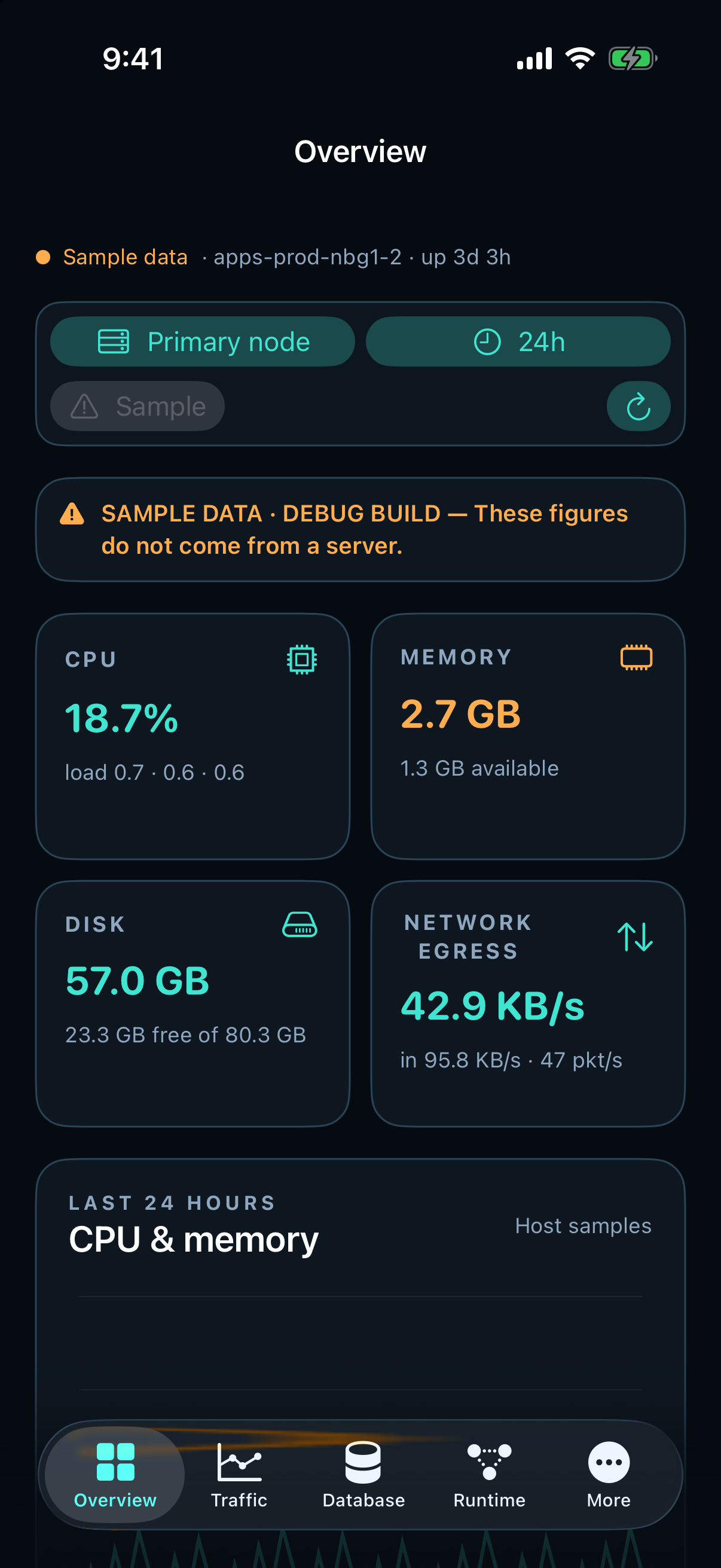
ONE SELECTED NODE
Review CPU, memory, disk, services, and recent health for the node you selected. The same node and window carry into deeper views.
Compare complete window totals with bounded saved request examples. Inspect routes, callers, response classes, and referral context without treating a Referer as caller identity.
Where licensed and permitted, see detector findings and mitigation state alongside observed responses. A 429 or 444 alone is not described as a verified block.
INSIDE THE APP
These are captures from the native app, not concept illustrations. Services, Cleanup, Overview, Devices, Traffic, Memory and Disk use debug fixtures, so their figures do not represent a production host.
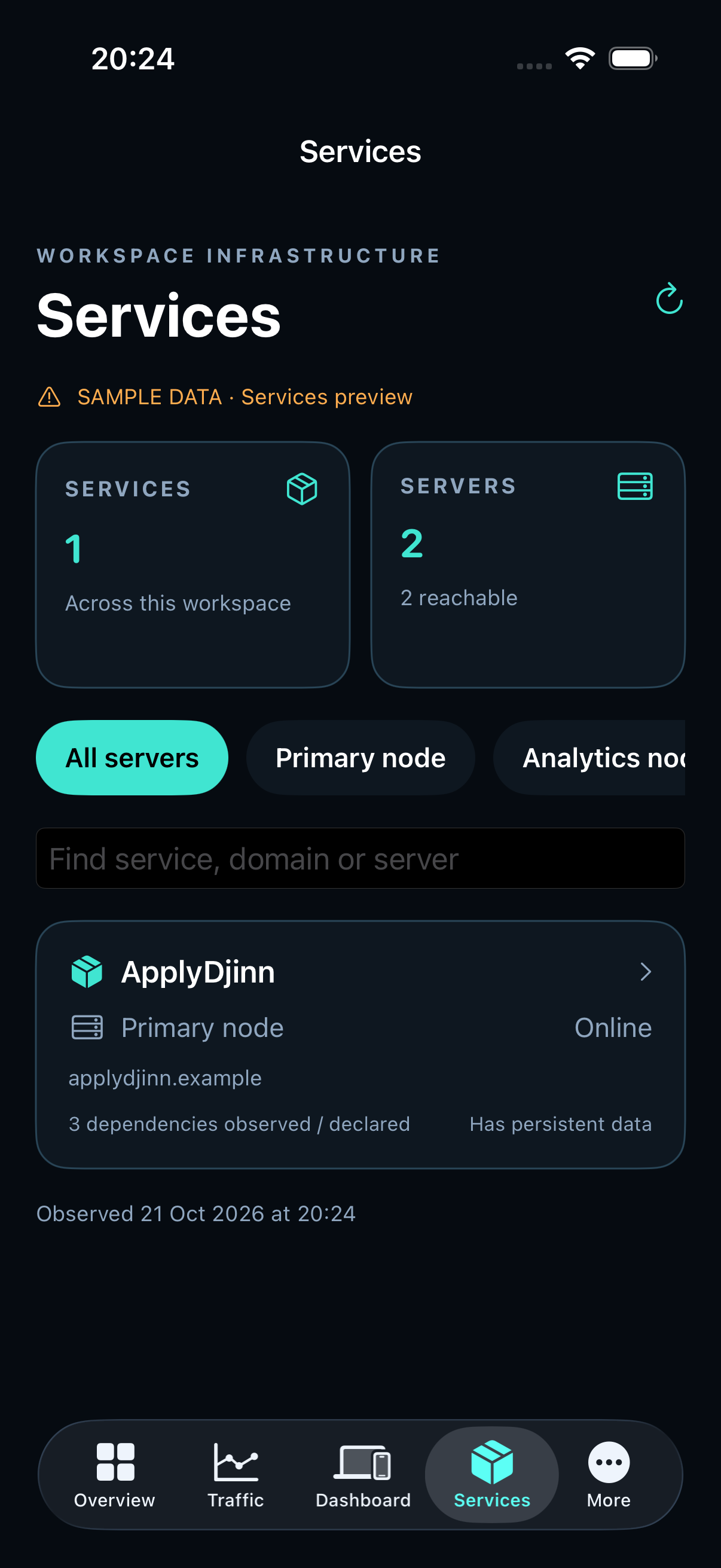
See service placement and dependencies across the workspace. Preview a configured move, verify capacity and follow backup, transfer, health, routing and rollback steps. Database is now in More.
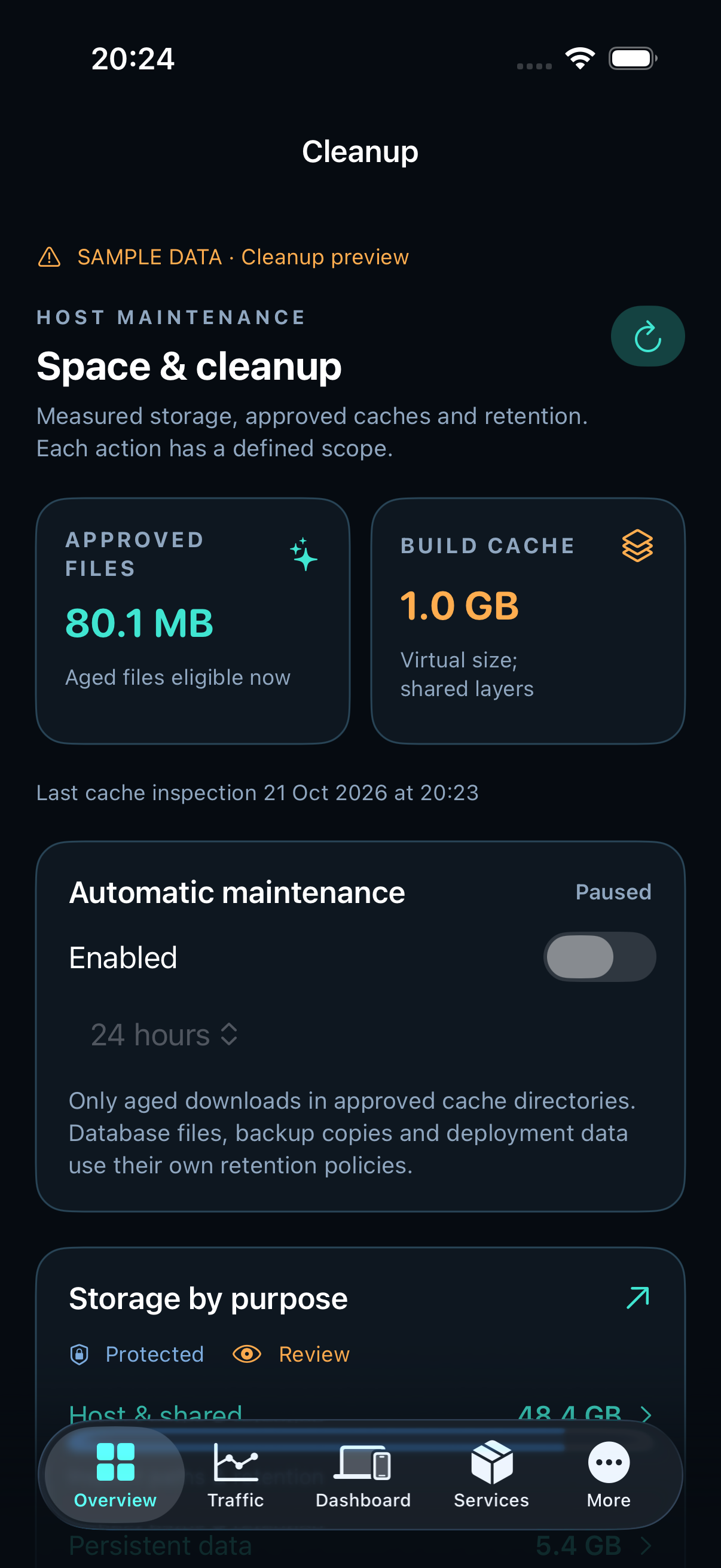
Scroll through storage categories, approved caches and exact paths. A paused inspection offers a retry while retaining the last measurements.
Select a node and time window, then review host health and the next area to investigate.
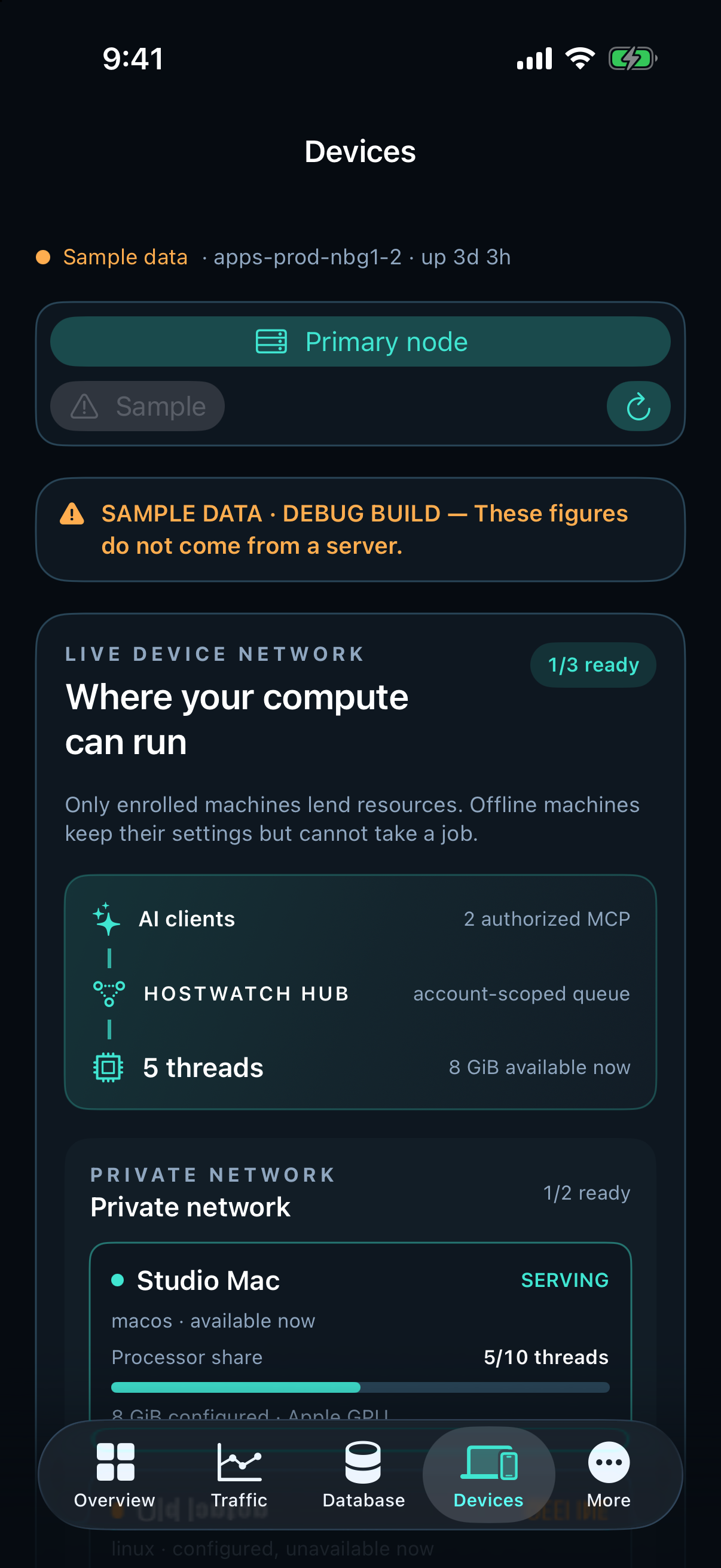
Follow an AI job from an authorized client through Hostwatch to available compute. See each private network, the configured share of every machine and recent job outcomes. Offline machines are clearly marked.
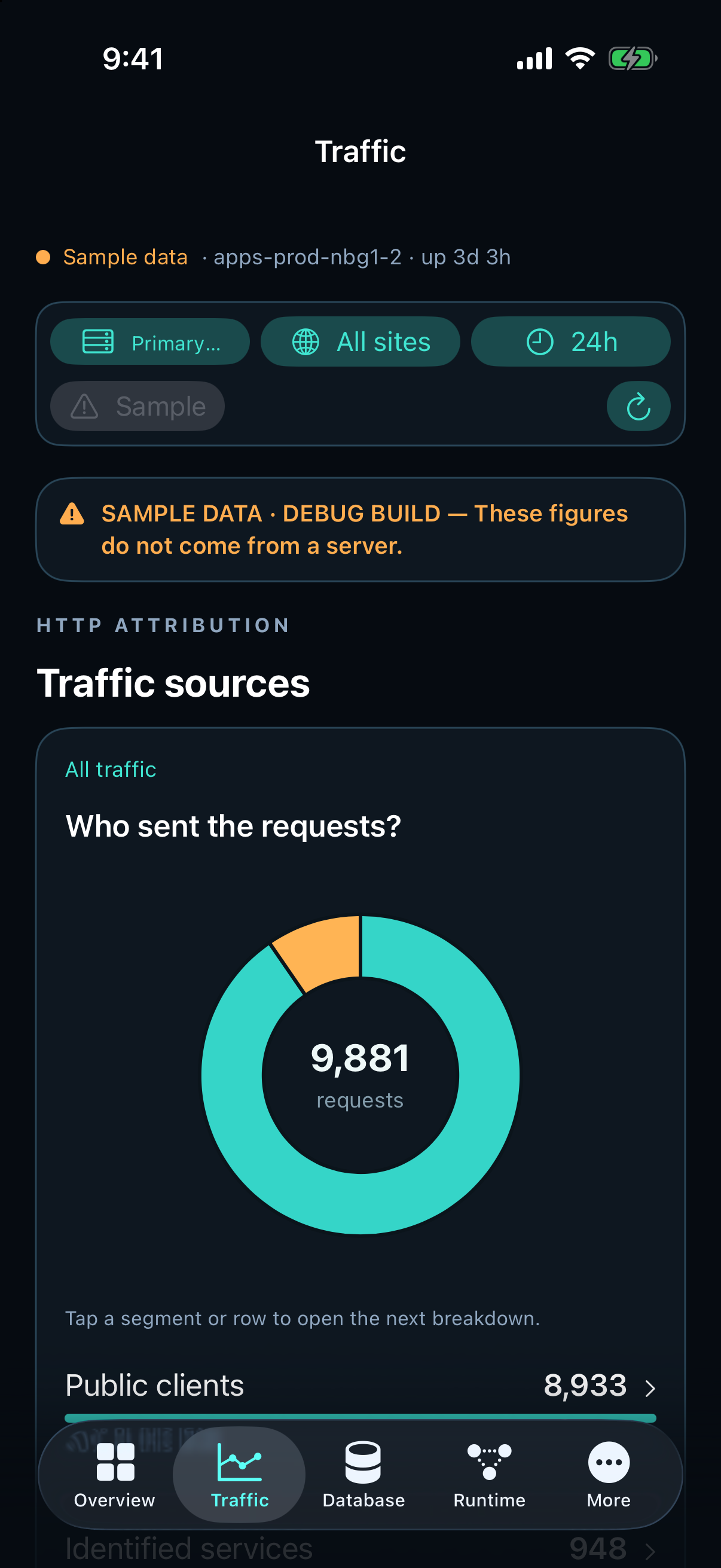
Start from caller groups, then inspect the next breakdown with the selected node and window in place.
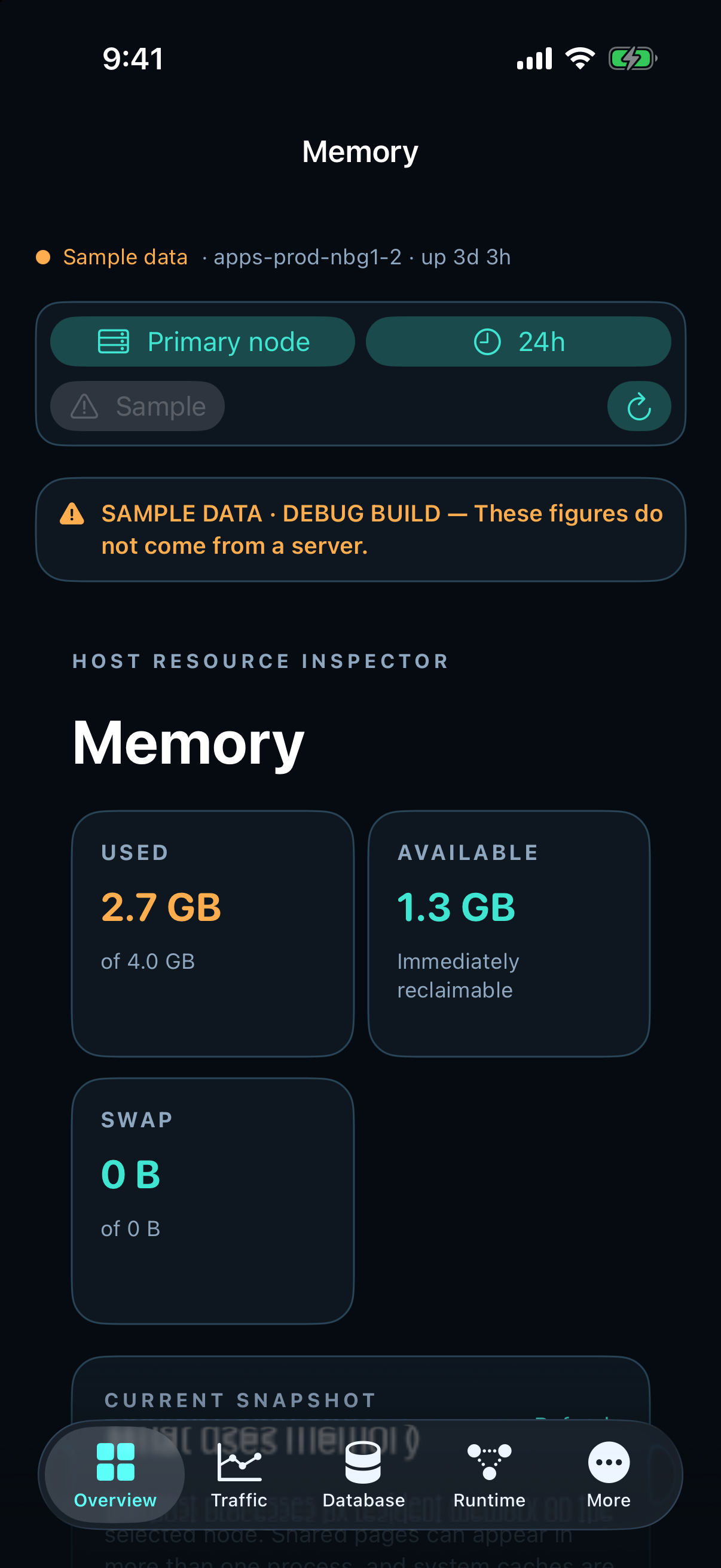
Inspect used and immediately available memory, swap, and the current host reading.
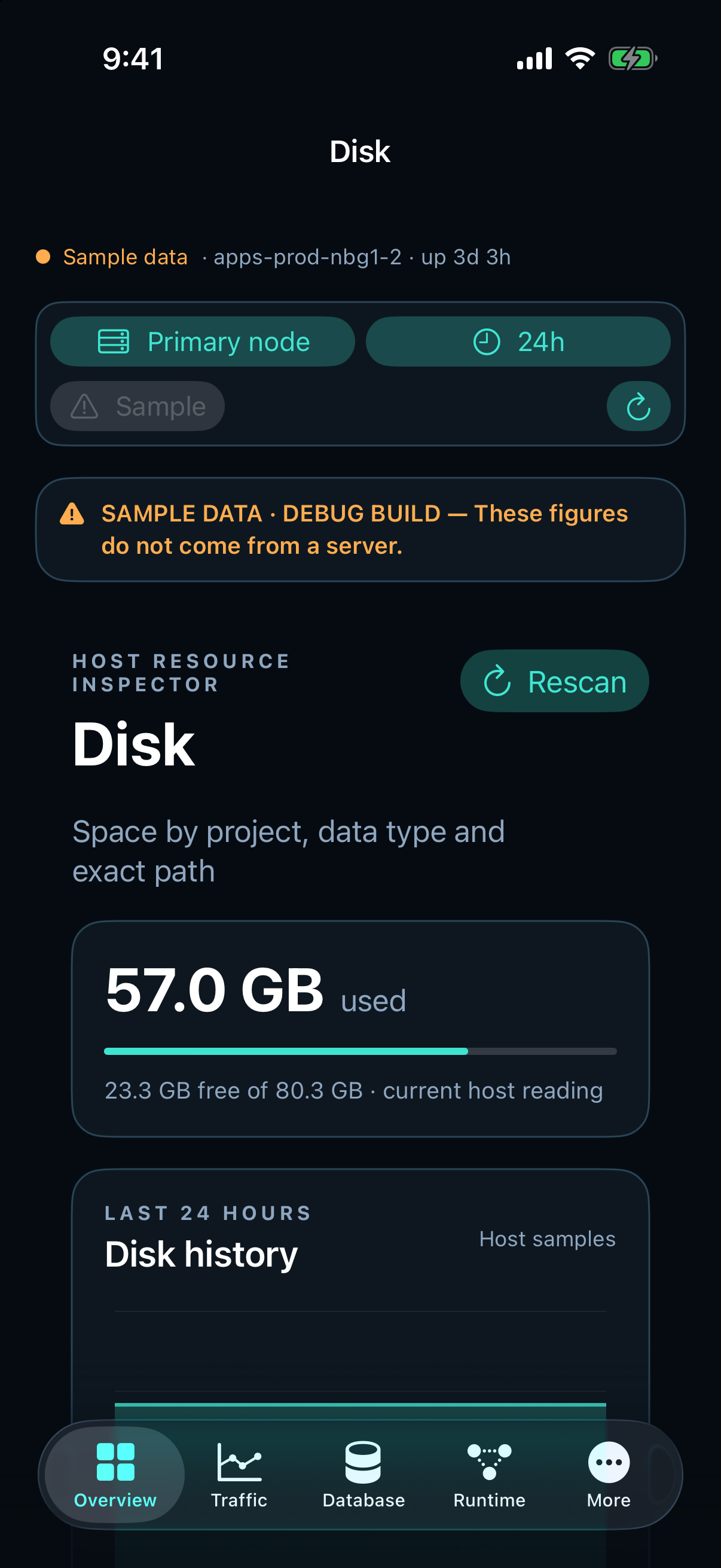
See host disk use and history, then inspect space by project, data type, and path.
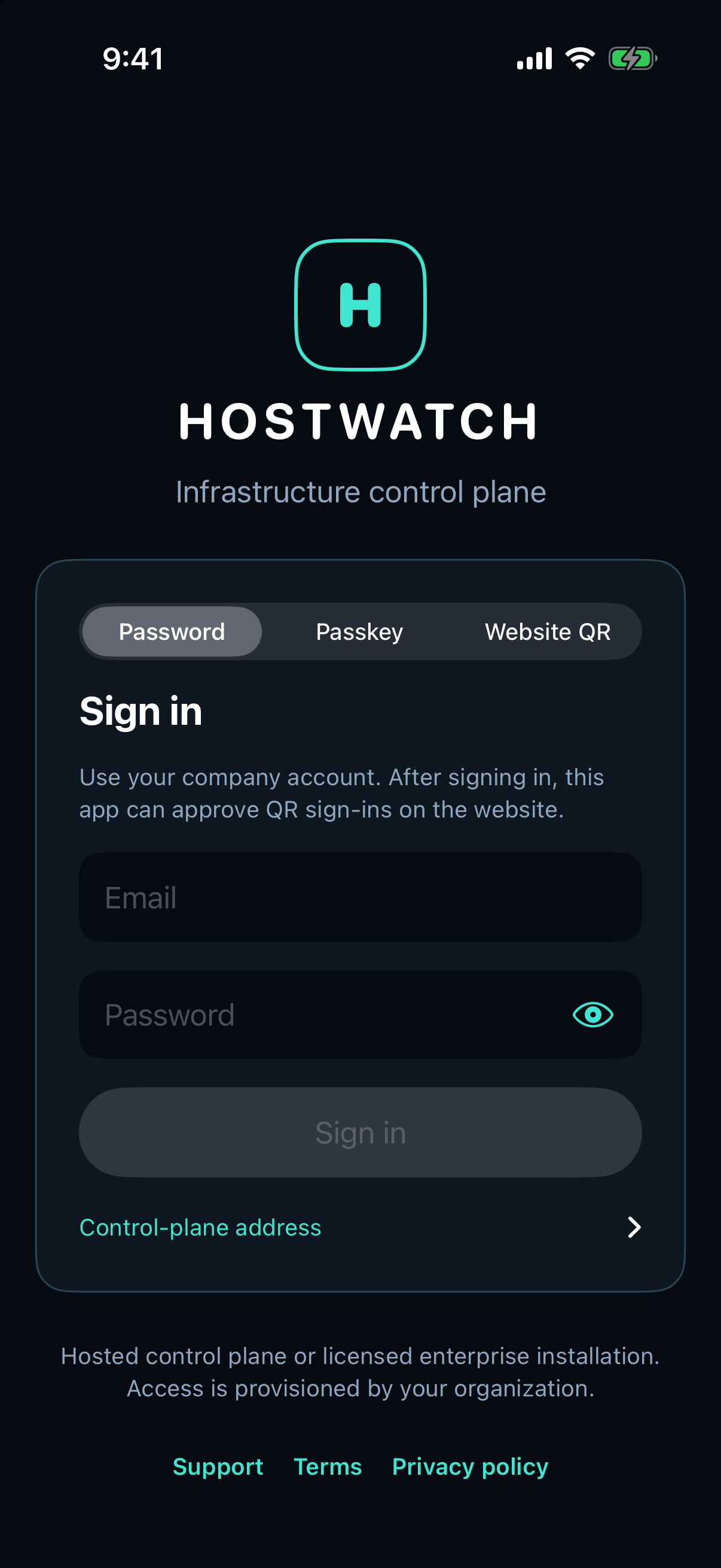
Use your organization account, a registered passkey, or an approved QR pairing flow.
ACCOUNT SECURITY
Use an organization account or a registered passkey. An already signed-in website can approve a new iPhone or iPad session by QR; a signed-in phone can approve a website sign-in after comparing the six-digit number. Face ID and device passcode checks stay on the device.
Read the setup steps →EVIDENCE WITH LIMITS
Traffic totals cover the selected time window. Individual paths, client IPs and map locations depend on retained requests, which can be fewer than the total. Hostwatch labels those scopes so a small sample cannot pass for a complete breakdown.
Read the traffic field guide →