
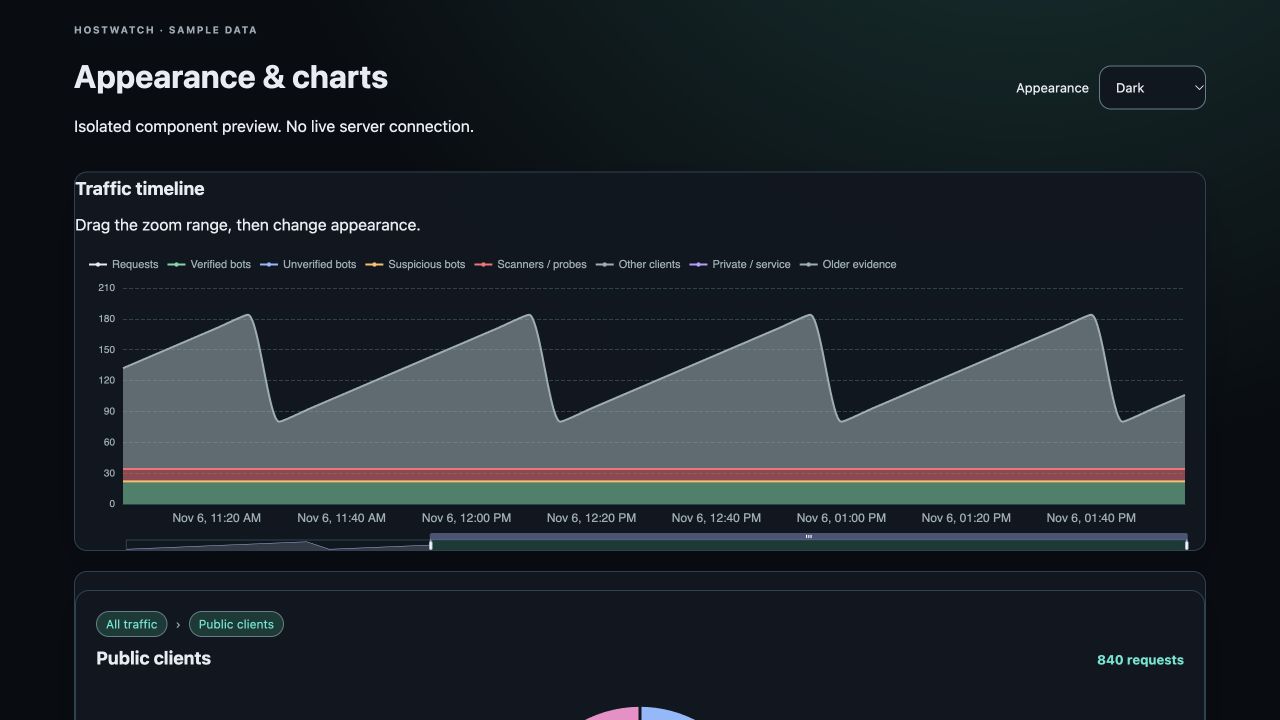
Choose how Hostwatch follows your device
System follows the light or dark appearance reported by your device or browser. Light and Dark keep the selected appearance even when the device changes. System is the default.
The website, console and native app share the same surface, text and status palette. A warning remains a warning in either theme. Theme changes do not change server measurements, service policies or account access.
Website and web console
On a wider website screen, use Appearance beside Sign in. On a smaller screen, use Appearance in the footer. The choice applies to the public pages and the console on this browser origin.
Inside the console, use the selector at the bottom of the navigation sidebar, or open Organization and find Appearance. The choice is available independently of administrator controls.
Your browser saves the choice locally and shares it with other tabs for the same origin. It does not update another browser, a private browsing session, a different private installation or the native app. If browser storage is blocked, the current visit can still change appearance; the selection may not survive closing or reloading the page.
- Open Appearance.
- Select System, Light or Dark.
- Continue using the current page. A server restart or sign-in is not needed.
iPhone and iPad
In the iPhone app, open More, then Appearance in the Workspace section. On iPad, Appearance is also available in the Workspace sidebar. Choose one of the three rows; the checkmark shows your selection.
The selection applies across the app, including detail sheets and embedded traffic charts. It is saved only on that device. Native AI controls use the app’s appearance while they are open.
The appearance screen is included in TestFlight build 149 and later. Older builds keep their previous appearance behavior.
Keep the evidence in view
Changing appearance recolors the timeline, source breakdown and fleet charts. The web timeline retains its zoom and legend selection, and source drill-down remains on the selected caller group. Embedded native timelines keep their inspection and zoom behavior.
Use the chart labels as well as color to interpret a series. Missing data remains unavailable. Illustrations and historical screenshots may retain their original backing and colors; they are not live measurements.